Phoenix Review: Fees, Features & Setup Guide

Updated: October 2025

Quick verdict

positive icon Best for: Mobile-first Lightning payments with self-custody and automated channel care.

neutral icon Consider if: You expect to receive euro Lightning tips without running your own node.

negative icon Not ideal when: You need desktop access or stronger payment privacy.

Getting started

Getting started with Phoenix

1. Install and secure your wallet

1. Install and secure your wallet

Setup time: ~5 minCost: FreeRisk: Low
  1. Install Phoenix from App Store or Google Play
  2. Write down your 12-word seed on paper and store it away from your device
  3. Enable biometric lock on your phone

Gotcha: Never upload the seed to email, chat apps, or cloud drives.

2. Receive your first sats

2. Receive your first sats

Setup time: ~2 minCost: ~1,000 sat + mining fee (first time)Risk: Low
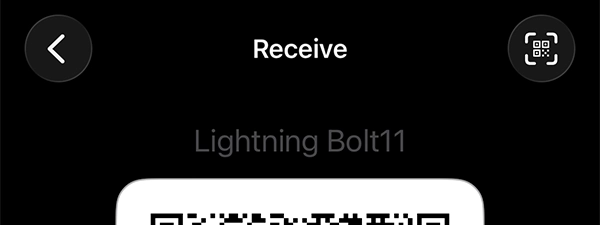
  1. Tap Receive to generate a Lightning invoice
  2. Share the QR code with your payer
  3. Keep the app awake until payment settles

Gotcha: First payment may open a channel and charge ~1,000 sat plus current mining fees if the network is busy.

3. Make a payment

3. Make a payment

Setup time: ~1 minCost: 0.4% + 4 satRisk: Low
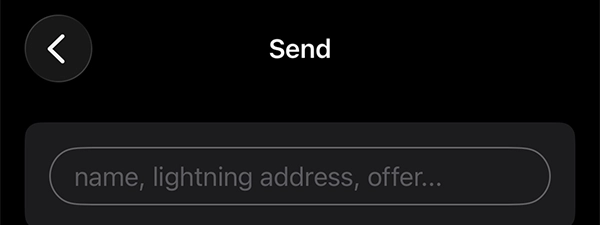
  1. Tap Send and scan or paste a Lightning invoice
  2. Review the amount and memo, then confirm
  3. Wait for the success banner (Phoenix retries automatically if needed)

Gotcha: For large invoices, adjust the maximum acceptable fee in Settings → Channel management before sending.

Fees: what you pay and when

Fees: what you pay and when

Pay someone

Pay someone

0.4% of the amount + 4 sat

What happens:
Your payment routes over Lightning.

Save money:
Avoid lots of tiny payments when the network is busy.

Learn more

Every outgoing Lightning payment includes this fee. The 4 sat is Phoenix's service charge, and the 0.4% covers routing through the Lightning network.

First time you receive

First time you receive

≈1,000 sat channel creation + current mining fee

What happens:
Phoenix opens a Lightning channel so you can receive payments.

Save money:
Wait for low on-chain fees (check mempool.space); receive when network is quiet.

Learn more

Your first Lightning receive triggers channel creation. Phoenix must commit an on-chain transaction to open the channel, which incurs the current Bitcoin mining fee plus a 1,000 sat setup charge.

Big receive

Inbound Liquidity (Splicing)

1% of the amount + mining fee (splice-in)

What happens:
Phoenix resizes your channel to accept more sats than current capacity allows.

Save money:
Consolidate into fewer, larger receives; spend down balance before receiving large amounts.

Learn more

When incoming payment exceeds available channel capacity, Phoenix performs a splice-in operation. This on-chain transaction increases your channel size and costs 1% of the received amount plus current mining fees.

Quick answers

Does Phoenix charge me every time I receive?

Not always. Once your channel exists and has room, small Lightning receives can be free aside from routing.

When will Phoenix open or resize a channel?

On your first Lightning receive or when more inbound capacity is needed.

How do I avoid the 1% splice fee?

Consolidate larger receives and avoid on-chain fee spikes.

Key terms
Channel open
Creates your first Lightning channel so you can receive.
Splice-in
Increases channel capacity to take larger receives.
Mining fee
On-chain fee paid when opening/resizing; varies with network demand.
Compatibility: what works with Phoenix

Compatibility: what works with Phoenix

Pay with Lightning

Works

Invoices Pay links Lightning Address

Phoenix natively routes payments over Lightning with low fees (0.4% + 4 sat).

Show steps

Gotcha: For very large payments, adjust the maximum fee cap in Settings → Channel management before sending.

Pay on-chain

Works

Send to Bitcoin addresses

You can send to regular Bitcoin addresses by closing channels or using swap-out.

Show steps

Gotcha: On-chain sends incur mining fees that vary with network congestion. Check mempool.space first.

Receive on Lightning

Works

Invoices Pay links Auto-opens channels

Phoenix automatically manages channels so you can receive without manual setup.

Show steps

Gotcha: First receive or large amounts may trigger channel creation/splice-in, costing ~1,000 sat + current mining fee.

Receive on-chain

Works

Converts to Lightning 3 confirmations

You can receive Bitcoin from exchanges and other on-chain wallets; Phoenix converts to Lightning.

Show steps

Gotcha: Phoenix waits 3 confirmations before swapping on-chain funds to Lightning. Set a swap fee limit in Settings.

Move your Phoenix wallet or funds

Move your Phoenix wallet or funds

Restore wallet on new device

Restore Phoenix on a new phone

Time: ~10 minCost: FreeRisk: Low

Choose: When you get a new device and want to keep using Phoenix.

Show steps
  1. Install Phoenix on the new phone and verify it's the official app from ACINQ.
  2. Choose Restore my wallet, enter your 12-word seed, and wait for channels to resync.
  3. Remove Phoenix from the old device once the new install works; never run both simultaneously.

Tips: Don't run Phoenix on two phones at the same time: channel states will conflict. Keep the new device online during resync; it may take a few minutes.

Gotcha: Android transaction history won't migrate; only your balance and channels restore.

Move wallet from another wallet

Another wallet → to Phoenix

Time: ~5–15 minCost: Routing feesRisk: Low

Choose: When you want to start using Phoenix but have funds in a different Lightning wallet.

Show steps
  1. Install Phoenix and complete the initial setup to generate your wallet and first channel.
  2. In Phoenix, tap Receive and generate a Lightning invoice for the amount you want to transfer.
  3. In your old wallet, send the Lightning payment to the Phoenix invoice. Start with a small test (~10,000 sats) first.

Tips: Always test with a small amount first. Phoenix will automatically open a channel if needed (costs ~1,000 sat + mining fee). Keep both apps open during the transfer.

Gotcha: Your old wallet's channel balance can't be transferred directly—you must send payments to Phoenix, which takes a minute or two.

Move wallet to cold wallet storage

Phoenix → to on-chain wallet

Time: ~1–6 hoursCost: Mining feeRisk: Low

Choose: When you want to move Bitcoin for long-term storage.

Show steps
  1. Open Phoenix, go to Settings > Close channels, and confirm cooperative close (cheapest way to exit).
  2. Wait for closing transactions to confirm (1–6 blocks); funds appear in Phoenix's Final wallet view.
  3. Sweep coins to your preferred on-chain wallet once confirmed.

Tips: Prefer cooperative close over force close; it's faster and cheaper. Check current fees before closing; wait for low-fee periods to save sats.

Gotcha: Forced close can take up to 5 days and costs more. Only use if ACINQ is offline.

Move wallet to another wallet

Phoenix → to another Lightning wallet

Time: ~15–45 minCost: Routing feesRisk: Low

Choose: When you want to try a different Lightning wallet and move your Phoenix balance.

Show steps
  1. Install your new wallet and complete its backup process.
  2. Send a small test payment (~10,000 sats) from Phoenix to the new wallet to verify it works.
  3. Close Phoenix channels (Settings > Close channels) and sweep remaining funds once confirmed.

Tips: Test first with a small amount (~10,000 sats) to catch issues before moving everything. Verify the new wallet's recovery model matches your security preferences.

Privacy & Safety

Privacy & Safety

Who can see what when you use Phoenix

  • Phoenix connects to ACINQ's Lightning node to route payments. Today, ACINQ can see who you pay and the amount needed to deliver your payment.
  • On-chain transactions are public by design; reuse of addresses can link activity.
  • Use your own Electrum server (Settings) to limit what third parties learn about your addresses and balances.
  • Lightning peers still observe timing/amount metadata needed for routing.
Do: Connect your own Electrum server if privacy matters.
Don't: Assume Lightning is fully private. Some metadata still leaks via peers.

Lost your phone? How Phoenix recovery works

  • Your 12-word seed lives only on your phone. ACINQ can't recover it for you. Channel states are encrypted and synced so they can be restored.
  • Standard restore: install Phoenix → Restore my wallet → enter seed → keep the phone online while channels resync.
  • If Phoenix/ACINQ is unavailable: Settings → Danger zone → Force close channels. After ~720 blocks, funds appear in the Final wallet; then sweep on-chain.
Do: Store your seed offline and test a small restore when convenient.
Don't: Run Phoenix on two phones at the same time.

Availability & safe installs

  • App-store availability and funding options vary by country—check your local listing and on-ramp.
  • Install only from the official developer (ACINQ) on Apple App Store or Google Play.
  • Avoid third-party APKs; they're a common source of malware.

Quick answers

Does Phoenix work with my own node or Electrum?

Yes. Connect your Electrum server to improve privacy; Lightning peers still see routing metadata.

Can ACINQ recover my wallet if I lose the seed?

No. The seed never leaves your device.

What if ACINQ disappears?

Use Force close; funds appear in the Final wallet after confirmations, then sweep.

Key terms
Electrum server
A server your wallet queries for balances/tx history. Running your own improves privacy.
Force close
Shuts a Lightning channel on-chain without cooperation; slower and higher fees.
Final wallet
On-chain funds after channels close; sweep when confirmed.
Release & Trust

Release & Trust

Last update

October 2025

Store page
Publisher

ACINQ

Verify
Open source

Yes

Repo
Development activity

Active in last 30 days

Commits
Profile

Profile

Founder(s)
Fabrice Drouin & Pierre-Marie Padiou
Company description

Phoenix is designed to provide a simple, self-custodial experience for fast, low-cost Lightning transactions directly on mobile devices, emphasizing ease of use for beginners.

Phoenix is designed to provide a simple, self-custodial experience for fast, low-cost Lightning transactions directly on mobile devices, emphasizing ease of use for beginners.

Founded in
2019

FAQs

What fees apply when I pay over Lightning?

Phoenix charges 0.4% plus 4 sat for every Lightning payment you send.

What happens if I lack inbound liquidity when receiving?

Phoenix may open or splice a channel and charge 1% of the amount plus the mining fee when incoming liquidity is insufficient.

How private are Phoenix payments today?

ACINQ sees the destination and amount of your payments for now, although privacy upgrades are planned.

How do on-chain deposits work in Phoenix?

Phoenix gives you a Bitcoin address; after three confirmations the app swaps the funds to Lightning if fees are below your limit.

How can I restore Phoenix after losing my phone?

Install Phoenix, choose Restore my wallet, enter the 12-word seed, and let channels resync; Android history will not migrate.

×

Rate this service

Alternatives to Phoenix